
How to Use SEO Proxy for Better SEO Strategies

We’re in 2026, and SEO is now hyper-localized and aggressively anti-automation.
I learned this the hard way when I started launching serious-level SEO campaigns for my clients, tracking more than 5,000 keywords and scraping multiple backlinks for them.
I got so tired of constantly having to prove I’m not a robot, getting soft-blocked by Google, and sometimes even being totally banned. But when I integrated SEO proxies into my process, things started to feel less frustrating, and these problems became a thing of the past.
My SEO results saw a huge improvement, and my team saw a level up in both speed and quality.
In this guide, I’ll show you how to use proxies to improve your SEO strategies.
I’ll get started with some definitions, then I’ll show you my whole workflow in real time and how I use proxies with real SEO tools that you probably already use. Let’s get into it.
What are SEO proxies and why I use them daily
An SEO proxy is a server that hides your true IP address and replaces it with its own by sitting between your browser and the internet as an intermediary.
Normally, when you visit a website without a proxy, your computer sends your request directly to that website, including your IP address, which shows information about you, like who you are and where you’re connecting from.
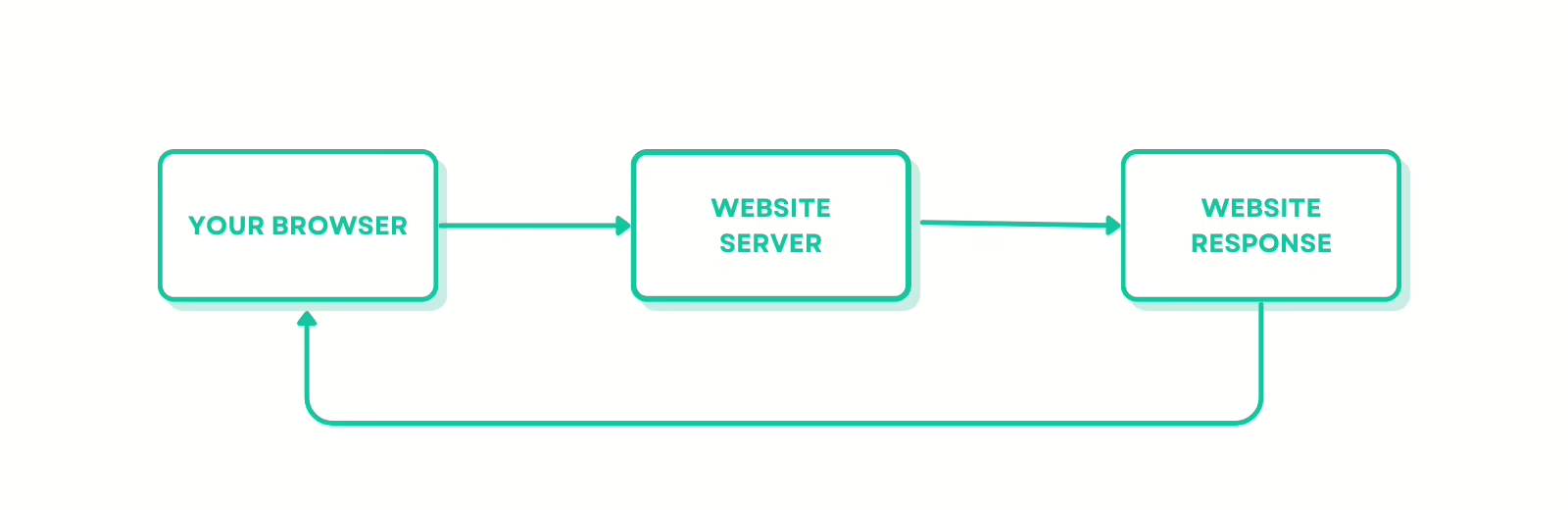
But once a proxy is activated on your browser, your request goes to the proxy server first. This proxy server replaces your IP address with its own before sending your request to the website.
That way, the website thinks the proxy is the one browsing, not you, and if the proxy is of a residential type, it looks like a real user connecting from a real house.
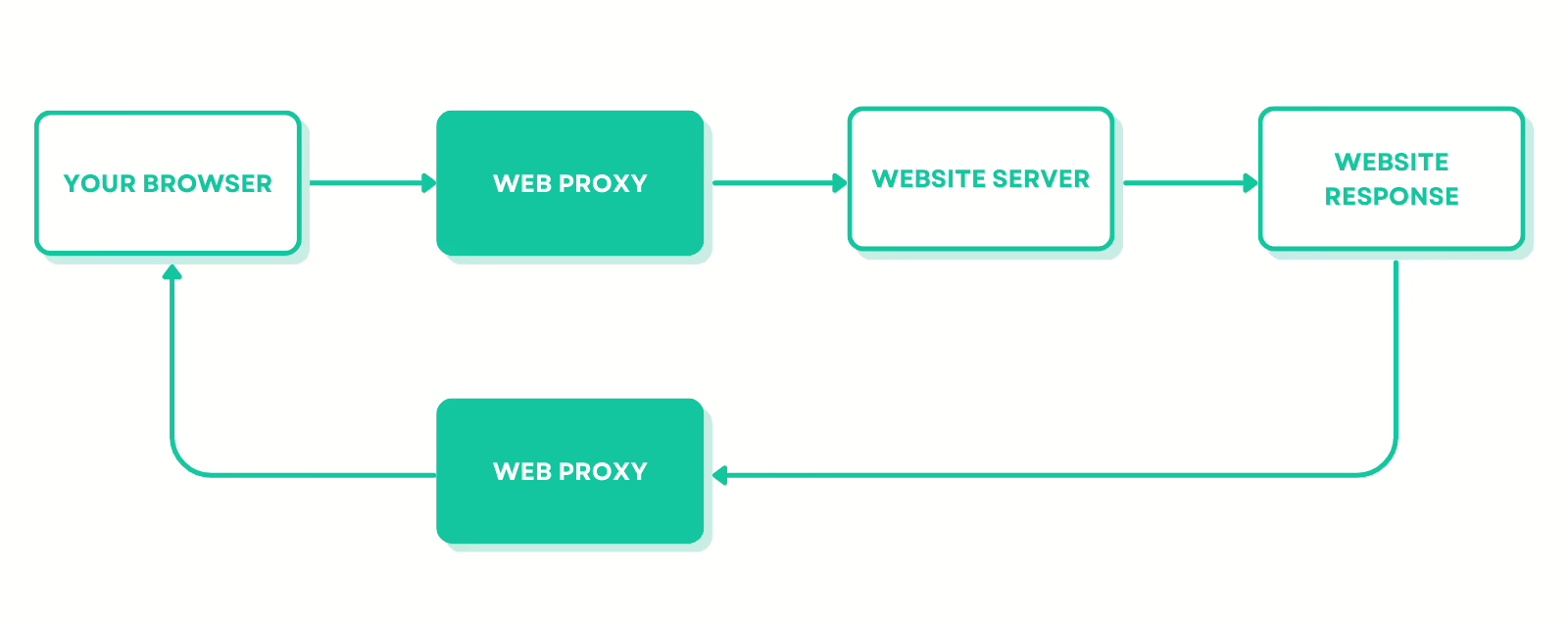
For SEO tasks specifically, this IP change must preferably happen in a rotational manner.
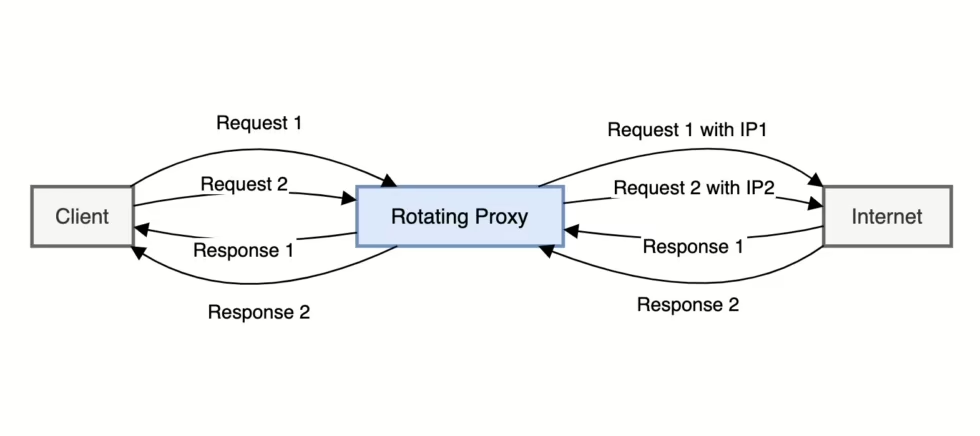
This means that you get a new proxy IP address assigned multiple times, so your numerous SEO tasks get distributed across these IPs.
You can either do this manually, by changing your proxy IP with each request, or you can automate the process by using rotating proxies.
Why SEO tools break without proxies (the problems I faced)
Soft blocks from Google
The other day, I got faced with a “soft” block by Google.
Search results loaded normally, so nothing looked broken at first. But when I scrolled down to see the “People Also Ask” boxes, I couldn’t find them. Local Map packs were not showing as well, and Featured Snippets (which were so important before Google AI overviews became popular) weren’t loading as well.
At first, I thought it was a bug, but it turned out that Google received so many requests from my IP address that it decided to “soft block” it, the same way that social media like TikTok shadowbans someone: you don’t get banned explicitly, but some features (or reach) are limited.
To solve this, I started using rotating proxies, which switch my IP for every single request I send. That way, it looks like a different user is sending each request, and I haven’t faced any soft blocks so far doing this.
Hyper-localised results
Did you notice that there is no longer a single “Google UK” or “Google Spain” search result anymore? I once tried to run a local audit for a client in the south of France while I was in Paris. Without a proxy, I either saw generic global results or Paris-specific ones. But once I activated a residential proxy based in the same area as my client, the results finally matched what real users in that area were seeing.
Inaccurate rank tracking
Google’s hyper-localization means that SERPs change block-by-block.
Without a proxy in my client’s specific location, my rank tracking was off by as many as 5-10 positions, so I was reporting “Rank #1” to clients who were actually seeing “Rank #12” on their phones! This was very embarrassing at the time, but it’s by making such mistakes that I improved my SEO skills.
My favorite SEO tools weren’t helping anymore
Without a good SEO proxy, even the popular SEO I relied on daily had limitations.
With Screaming Frog SEO Spider, I would hit a 403 wall by page 200. This happened especially on Cloudflare-protected sites and large e-commerce websites.
Key Collector was even worse, which constantly got me stuck in an infinite CAPTCHA loop with Google.
In both cases, the issue wasn’t the tools. It was the fact that my office IP sent multiple requests in a short period of time, so it kind of became a red flag for major anti-bot systems.
As for Ahrefs and SimilarWeb, they didn’t “break”, but their data felt incomplete or modeled, especially compared to raw scraping.
Basically, without an SEO proxy, my strategy, which I thought was “data-driven”, was in reality nothing more than a guess.
What changed once I started using SEO proxies
Using SEO proxies didn’t magically rank my websites in the top 10 results of Google, but it made large-scale tasks much more manageable and way less frustrating.
With SEO proxies:
- Crawling large sites became more stable
- I saw fewer interruptions when doing large keyword scrapings
- I could see the exact SERP results as my clients even if they are in the other side of the world
- I scaled my workflows without hitting rate limits
The moment my SEO efforts grew, integrating proxies became a necessity to have more control over my workflow.
My exact setup: How I use SEO proxies step-by-step
Here is my workflow using 1Browser and the best proxies on the market:
Download 1Browser
Just go to this link, and the download will start automatically: download 1Browser.
Why do I love 1Browser?
- My favorite thing is it offers built-in proxies I can use directly on the browser and a native manager to swap between their different IPs in two clicks without needing external proxy sources.
- It allows me to create up to 10 profiles for free (1 profile = 1 unique user)
- It keeps browser fingerprints (like Canvas, WebGL, etc.) consistent with the proxy, so sessions look more like normal users and raise no red flags
- It also keeps accurate time zone, language, and IP location
- It allows me to run isolated Ahrefs and Semrush profiles separately
- Each profile stores its own cookies and cache, so I deal with fewer logouts and “New device” verification loops
Choose the correct proxy type
There are only a few proxy types that I use for my SEO tasks:
- Residential proxies: for geo-targeted SEO, like checking search results in a different city or country, seeing how ads display in that country, and scraping SERPs. These proxies work amazingly for collecting Semrush data.
- Rotating proxies: these proxies change your IP automatically with every request, so if I research 1000 keywords, it looks like it’s 1000 different people searching the same keyword. This helps limit CAPTCHAs and bans.
- Datacenter proxies: although they’re easier for sites to detect, but they’re so fast. I mainly use them for quick tasks like keyword ranking checks and SEO audits. They’re the best proxy for Screaming Frog and Key Collector in my opinion.
- Mobile proxies: these proxies use IPs from real 4G/5G mobile networks, which, for search engines, look like real mobile users. These proxies are useful to test mobile-specific results and audits.
Where do I get my proxies?
I either buy my proxies from a provider like Floppydata or directly use 1Browser’s already built-in proxies.
Create isolated profiles with 1Browser
The standard browsers we all use, like Chrome and Firefox, leak your browser fingerprints, even if a proxy is on.
That’s where 1Browser comes into the equation; it’s an anti-detect browser that hides your identity and browsing fingerprint so you look like a completely different person from profile to profile.
I never run different SEO tasks from the same browser profile, so I don’t fall into cross-contamination. For example, if I’m tracking the rankings of two clients, one is in London and the other in New York, thanks to 1Browser, I can create 2 separate profile browsers for each client. This makes my requests look like they’re coming from two completely different computers, not one bot jumping between continents.
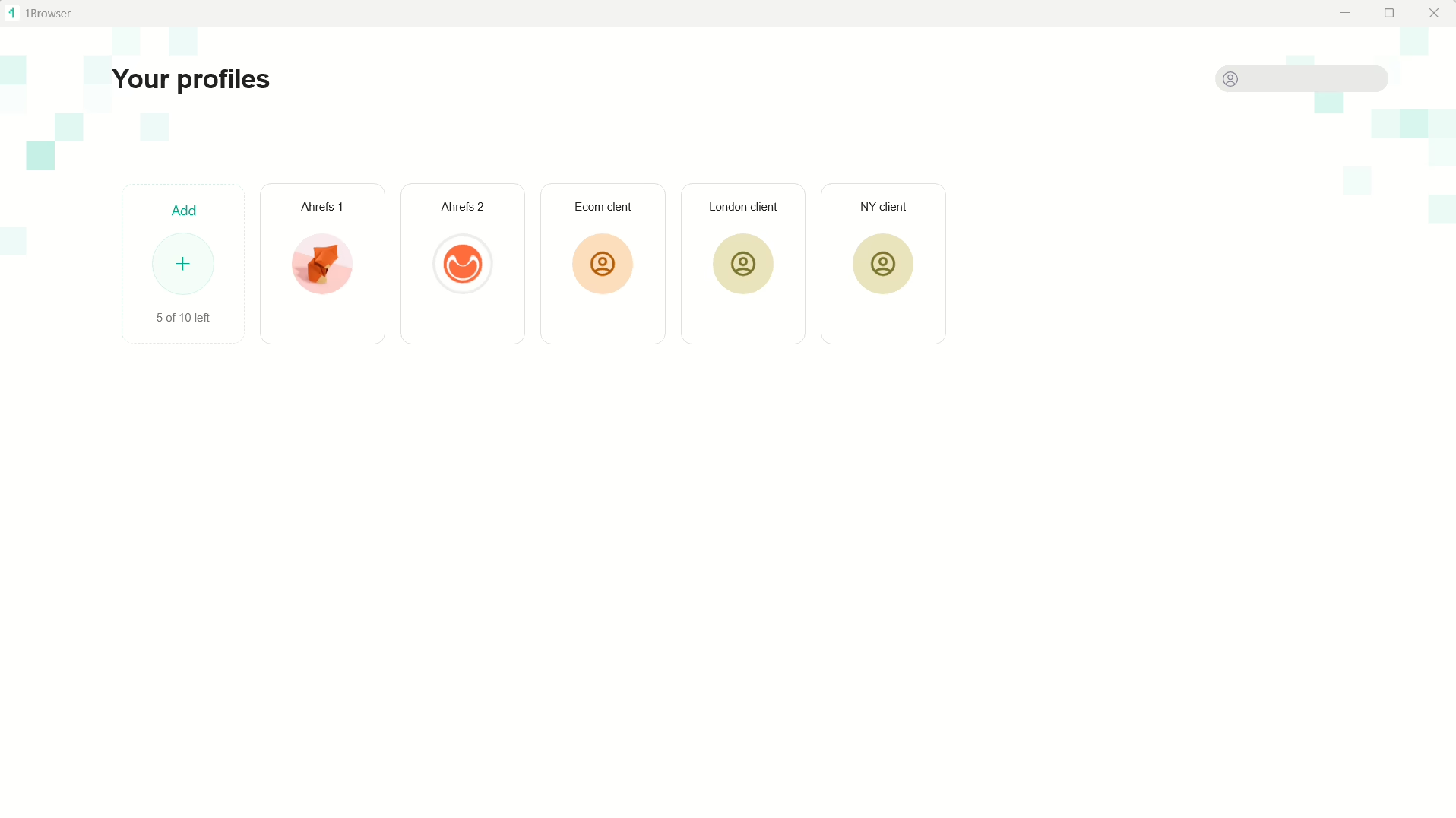
Connect the proxy to the profile
Once the profile is created in 1Browser, I go to settings, then click on Proxy.
Here are the different proxy options you have:
Use the user proxy type if you bought your proxy from an external provider. For example, here’s how I add a Floppydata proxy to 1Browser:
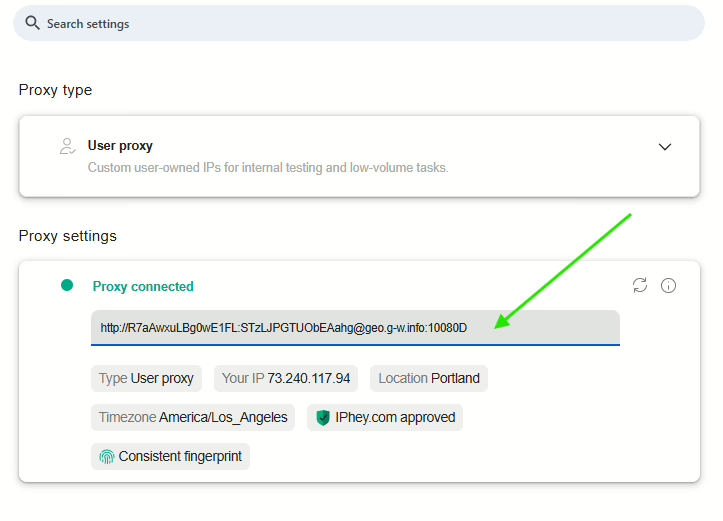
Use the other proxy types if you don’t want the headache of buying a proxy from external sources. I personally only use the Resident proxy type for SEO tasks.
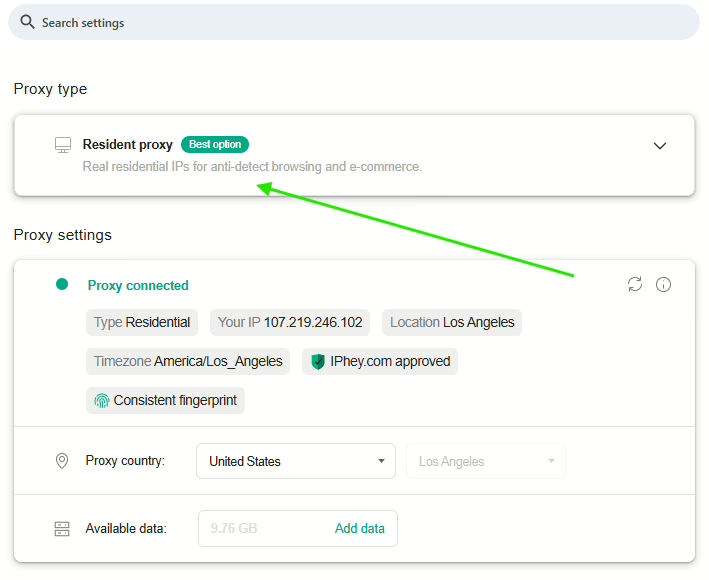
Note: for high-sensitivity tasks, avoid the free proxy options, but for quick rank checks and audits, you can use them just fine. For tasks that need speed, the Free Tor proxy type is not suitable at all because it’s the slowest of them.
Run the SEO Task & Monitor
Thanks to this setup, I can run high-intensity tasks 24/7. Because I’m using a best SEO proxies pool, the target website sees a steady stream of “new visitors” rather than a single aggressive scraper.
Use proxy for SEO by integrating it directly into your tools
Some SEO tools like Screaming Frog, Semrush, and Ahref’s API support the use of proxies.
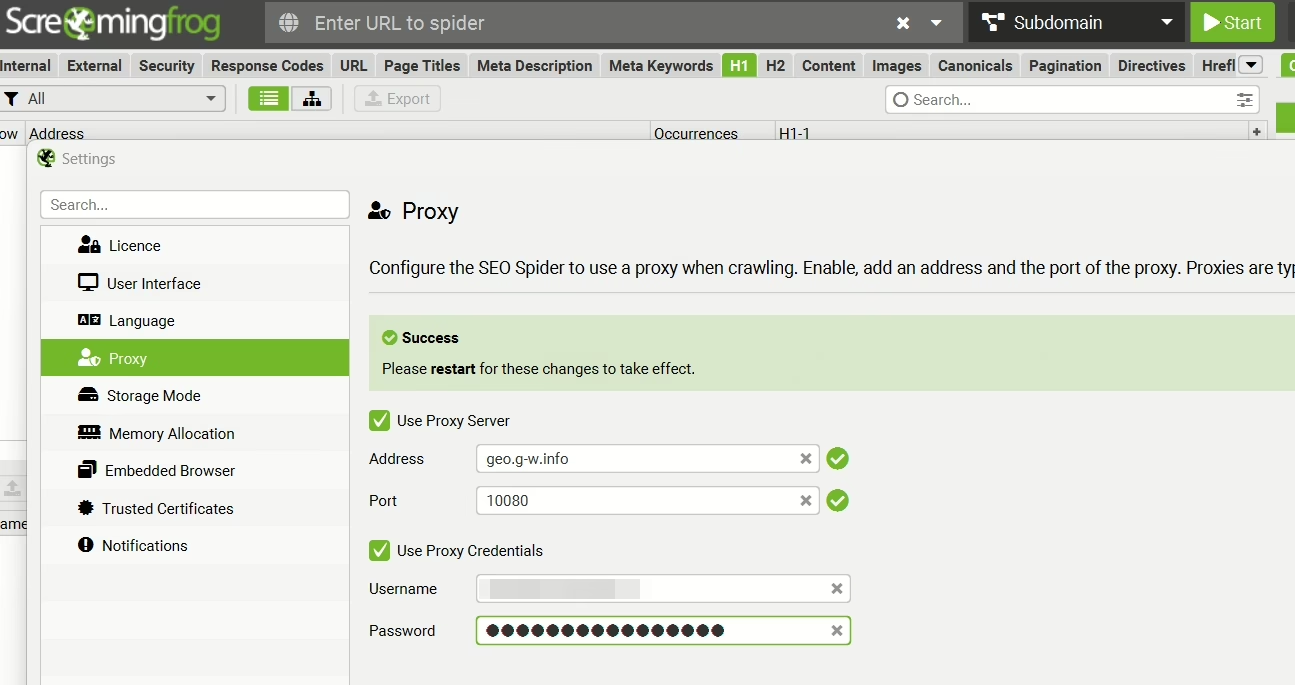
The proxy configuration input fields will most likely be found inside the settings of your tool. All you have to do is get a proxy from a provider like Floppydata, then paste its Address, Port, Username, and Password inside those input fields.
Example on Screaming Frog:
Final Thoughts
You can, of course, do SEO without proxies, but if you’re scraping big quantities of data, crawling large websites, or working on location-sensitive campaigns, you will run into limitations fast. I love to combine SEO proxies with 1Browser so I can finally remove the “bot” target from my back. Sometimes I don’t even bother to get proxies externally; I just use those of 1Browser.
Do it however you want, it will bring the same result: you will be able to scale to as many page crawls as you want, protect your Ahrefs and Semrush accounts from bans, and see the unfiltered, hyper-local SERPs your clients actually see.