

What is a Web Proxy and How it Works: Simple Guide

A web proxy is a server that sits between your browser and the websites you visit – it hides your real IP address and lets your traffic appear to come from a different location. Unlike a VPN, it only reroutes browser traffic, not your whole device.
My team and I have also used web proxies for privacy protection, testing how a website or app appears in another region, or bypassing regional restrictions that are imposed on some apps in some countries we visited.
Since they are a valuable tool in my life and business, I thought I’d write this guide where I will tell you everything I know about web proxies, explain in simple terms what they are, how they work, and how to actually use them.
I’ll also clear up some confusion many people have about the difference between a proxy, a web proxy, and a VPN.
So, let’s get into it.
What is a web proxy and how does it work?
We often hear that a web proxy is a middle layer that sits between you and the website you want to access. But what does that mean in practice?
To make this easier for you to understand, let’s see what happens on your browser with and without a web proxy.
Without a web proxy, the communication flow between you and a website looks like this:
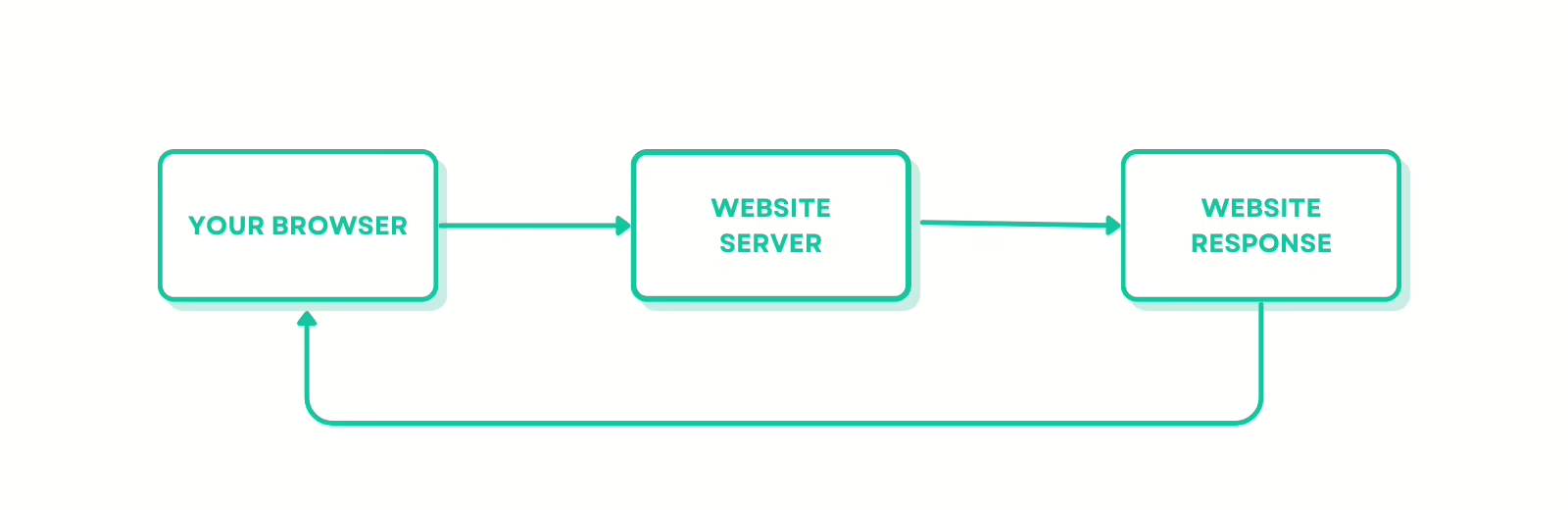
It’s a direct communication with no intermediary.
In this case, when you access the website, it can actually see:
- Your real IP address
- Your location
- Your browser fingerprint
- Your device type
- Your network provider
- etc.
However…
When you use a web proxy, it actually looks like this:
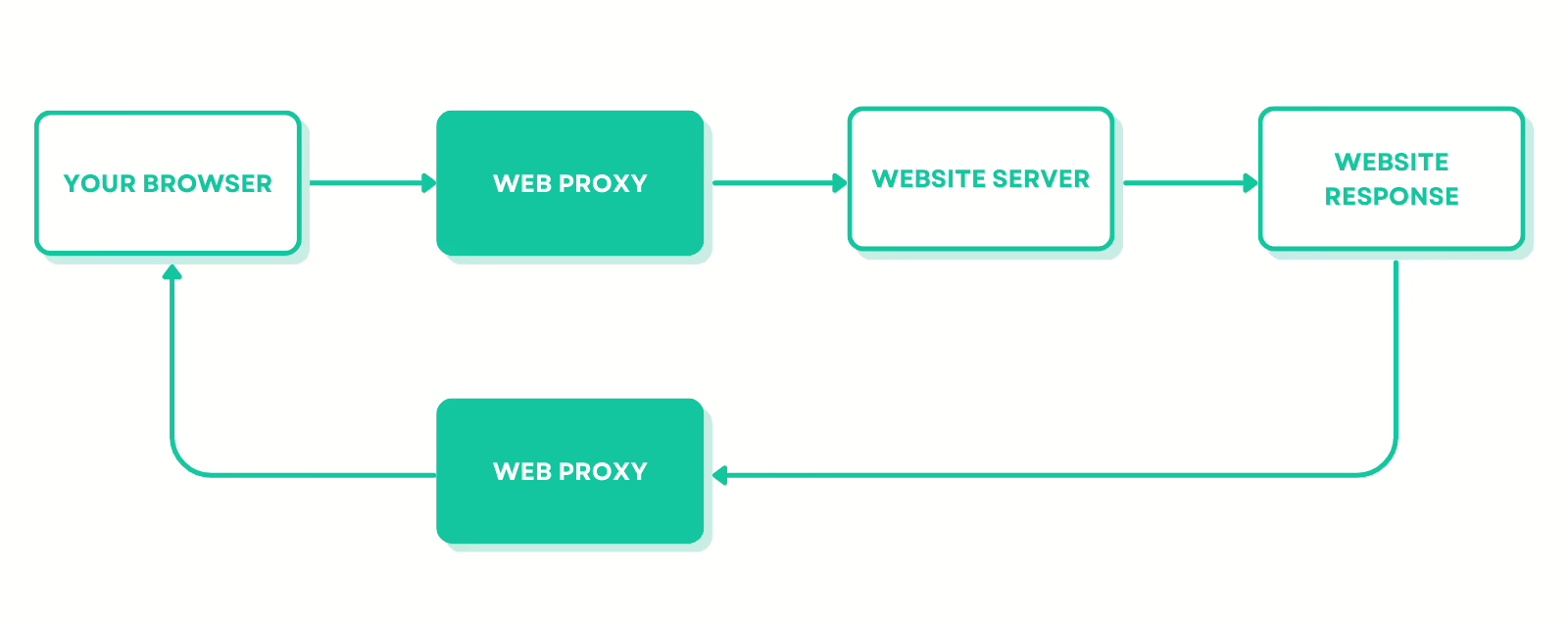
As you can see, the proxy becomes the middleman handling the communication between you and your website.
And since there is an intermediary now, which is the web proxy, the website sees:
- The proxy’s IP address instead of yours
- The proxy’s geographic location
- The proxy’s network or ISP
Web proxy vs proxy server vs VPN
These three often confuse people but they’re quite different from one another.
Web proxy vs full proxy server
A web proxy only handles HTTP and HTTPS protocols to route browser requests, while a full proxy server can route many types of network traffic, not just browser requests.
A proxy server can handle:
- HTTP and HTTPS traffic (like a web proxy)
- SOCKS Protocols (SOCKS4/SOCKS5)
- FTP (File Transfer Protocol)
- SMTP, IMAP, & POP3
- DNS Queries
- SSH (Secure Shell)
- SSL/TLS Inspection
- Load Balancing
- Caching & Compression
So basically, a web proxy is a specific type of proxy server that’s used inside a browser or web interface only. And when you configure a web proxy on a browser:
- That browser traffic is routed through it
- Non-browser traffic (desktop apps, system processes, other protocols) is not affected
- The web proxy can read and modify the actual content of HTTP requests and responses
- But it cannot read or modify any non-HTTP traffic
Web proxy vs VPN
VPN is short for Virtual Private Network, and it operates on the network level of the operating system, which means it can route all types of internet traffic from your device, not just HTTP or HTTPS on the browser.
So when a VPN is on, it’s all the apps and software on your device that are affected, not just your browser.
To do so, the VPN creates a tunnel between your device and a remote server, and through this tunnel, it allows the connection to move in an encrypted form.
Because of this encryption (or thanks to it):
- Hackers can’t read your traffic because it’s too complicated to understand
- Governments and network observers can’t inspect your data
- And your internet service provider (ISP) can’t see what websites you’re visiting
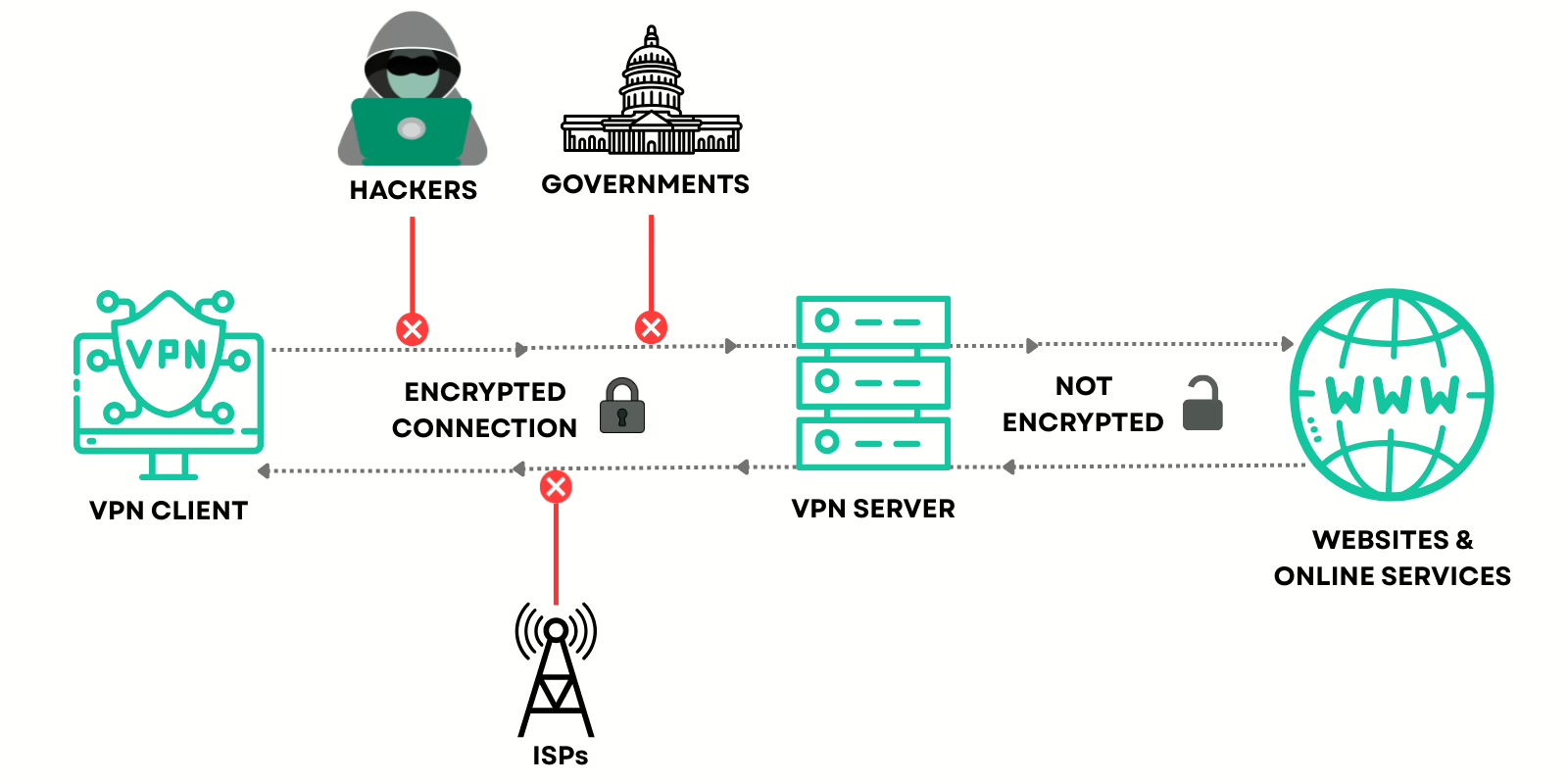
After the encrypted traffic reaches the VPN server, it sends your requests to the website on your behalf, and the responses return through the encrypted tunnel to your device.
And since the VPN sits between you and the internet, it hides:
- Your real IP address
- Your location
- Your browsing activity
- Your traffic
So, the website sees the VPN’s information instead of yours.
What does a web proxy do better than a VPN?
- With no encryption overhead, web proxies are way faster than VPNs
- A web proxy (especially via a proxy browser) lets you assign different IPs to different browser profiles, while a VPN restricts you to only one IP address only
- Professional proxy networks offer city-level or even ISP-level geo-targeting, while most VPNs offer country-level only
- A web proxy network can rotate your IP address on every request or at set intervals. A VPN gives you one IP address only per session.
- A web proxy can be activated in browser settings in 30 seconds. A VPN requires installation and sometimes needs admin privileges
- VPN tends to be more expensive than proxy networks
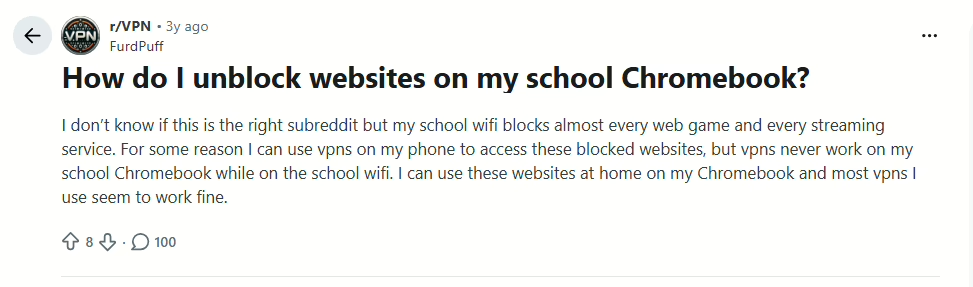
- VPNs are easily detectable, sometimes restricted by certain ISPs and impossible to install. For example, this Reddit user says that they cannot use the VPN on their school Chromebook when using the school’s wifi:
Key differences at a glance (Web proxy vs Proxy server vs VPN):
Web Proxy |
Full Proxy Server |
VPN |
|
| Traffic handled | HTTP/HTTPS only | HTTP, SOCKS, FTP, DNS, SSH, and more | All traffic (every app on your device) |
| Works at | Browser level | Network/system level | OS level |
| Encrypts traffic | ❌ No | ❌ No | ✅ Yes |
| Hides your IP | ✅ Yes | ✅ Yes | ✅ Yes |
| IP rotation | ✅ Yes | ✅ Yes | ❌ No |
| Speed | Fast | Fast | Slower (encryption overhead) |
| Multiple IPs at once | ✅ Yes (per profile) | ✅ Yes | ❌ No (one IP per session) |
| Geo-targeting precision | City/ISP level | City/ISP level | Country-level only |
| Easy to set up | ✅ Yes | ❌ No | Moderate |
| Affects non-browser apps | ❌ No | ✅ Yes | ✅ Yes |
| Best for | Browsing, scraping, SEO | Large-scale infrastructure | Full-device privacy |
Types of Web Proxies
- Transparent proxy – identifies itself as a proxy and passes along your real IP anyway; used mostly for content filtering, not privacy
- Anonymous proxy – hides your IP but identifies itself as a proxy to the website
- High anonymity (elite) proxy – hides your IP and doesn’t reveal that a proxy is being used at all; the type most privacy tools and anti-detect browsers rely on
- Reverse proxy – sits in front of a server (not your browser) to manage incoming traffic, load balancing, and caching – different use case from the client-side proxies discussed above
How to use a web proxy (step-by-step)
To use a web proxy, two main methods exist:
- Buy a web proxy (HTTP/HTTPS) from a proxy provider, copy its IP address and port number, then paste them into your browser or device settings to configure that proxy and route your traffic through it.
- Or, simply use a proxy browser like 1Browser that you can just open and directly activate one of its built-in proxies.
For the sake of this guide, I’ll show you how to use a web proxy on 1Browser because it’s the quickest and easiest method.
Here are the steps to using a web proxy with 1Browser:
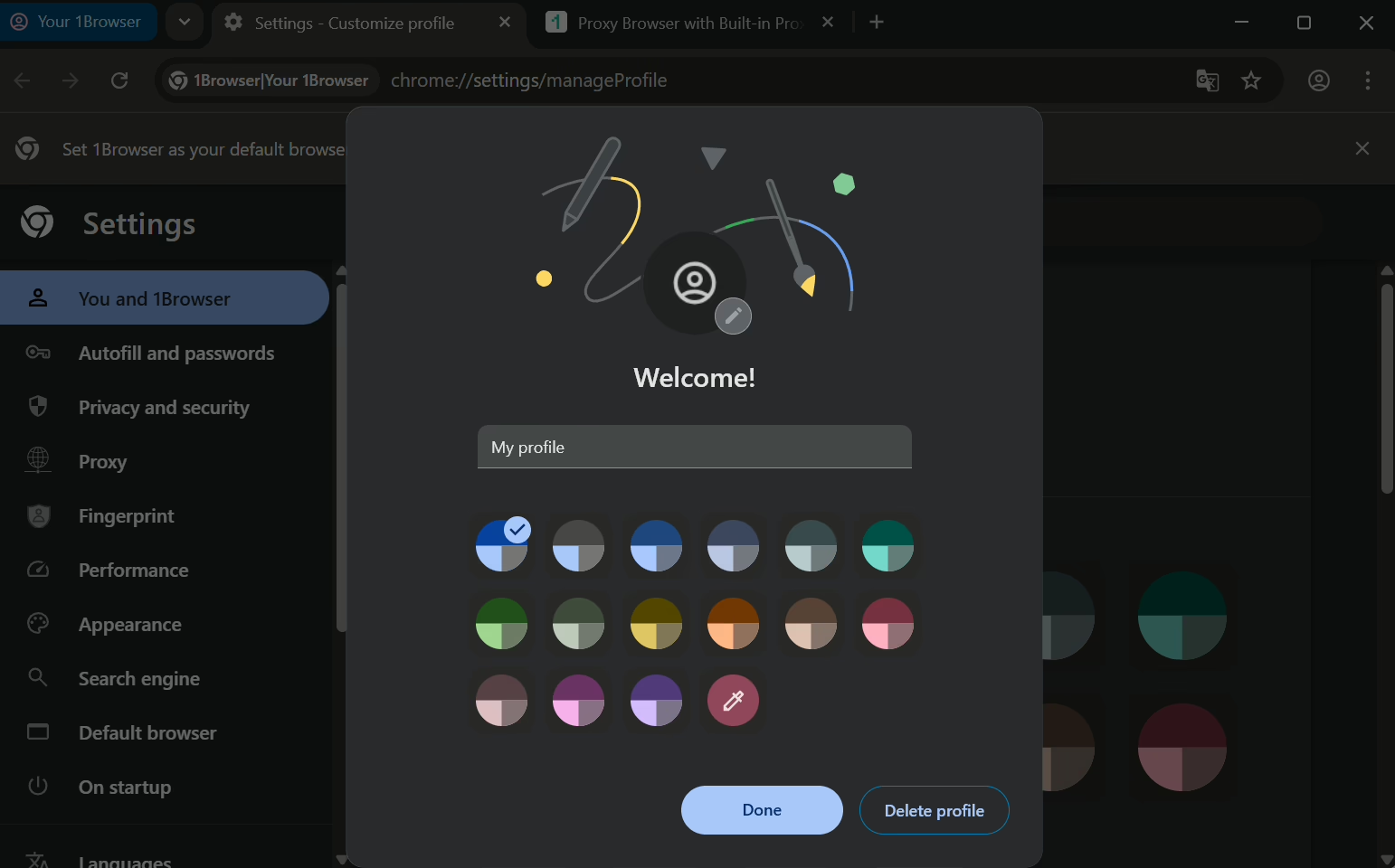
- Install 1Browser through this link.
- Create your browsing profile (you can create up to 10 profiles for free!)
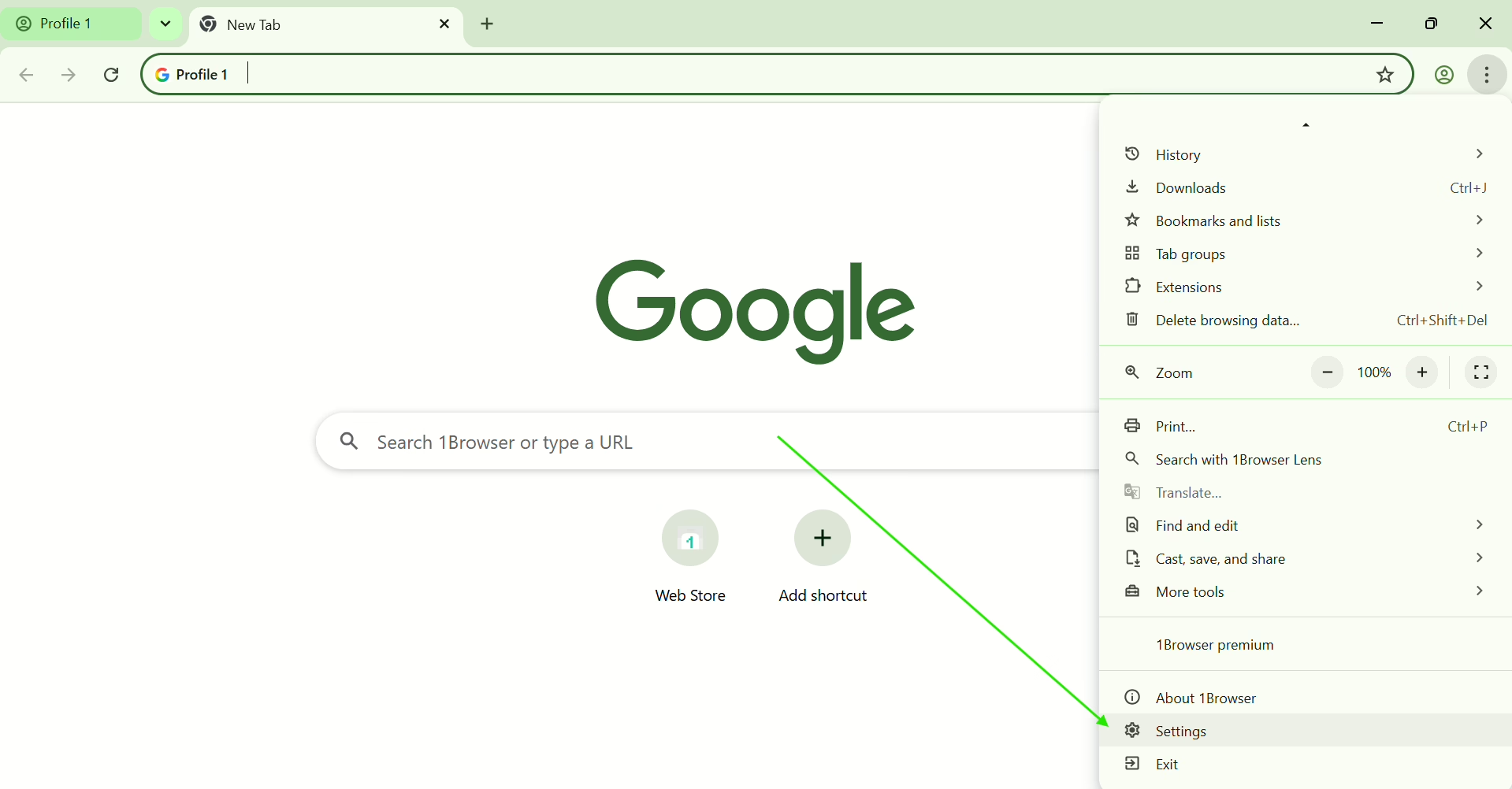
- Once you’re in, you’ll notice it’s similar to other browsers like Chrome. Click on the three dots on the top right corner and go to Settings
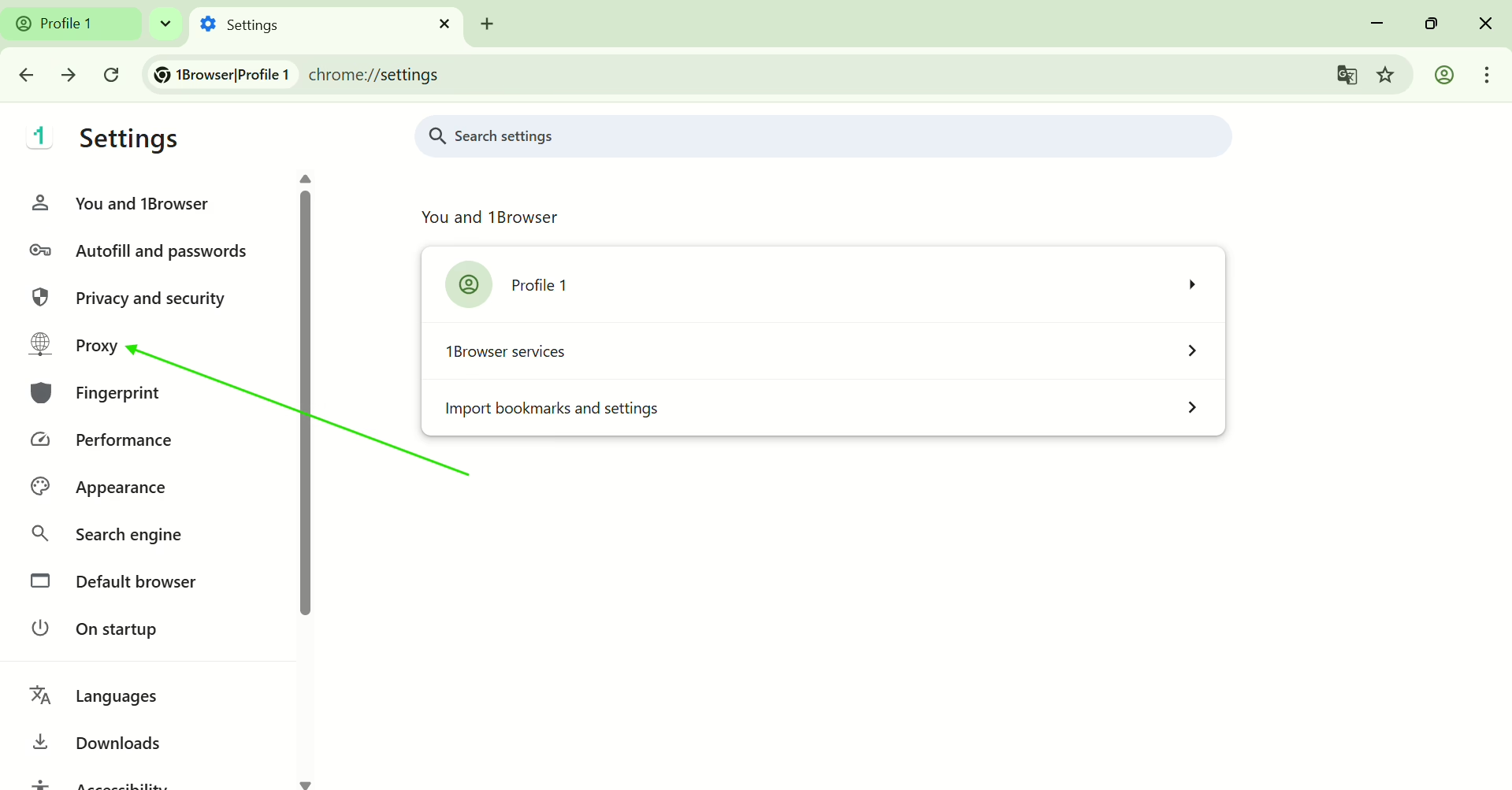
- Click on Proxy from the left sidebar
- Choose your preferred proxy type and set up its location, then wait for it to connect.
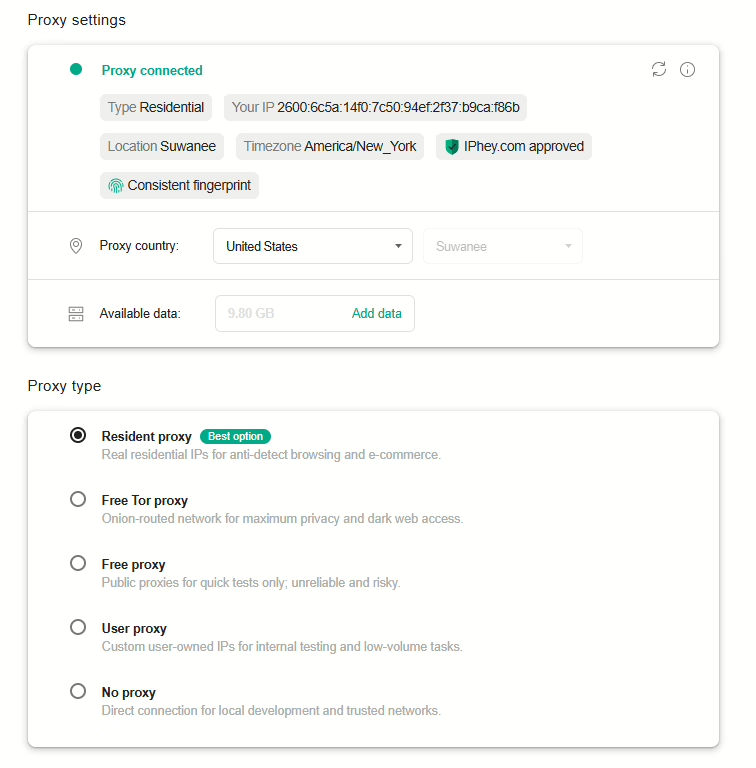
As you can see in the image above, I have successfully connected a US-based proxy to my browser. Let’s check if this proxy is working just fine:When typing whoer.net in my search bar, here’s what is says about my IP:
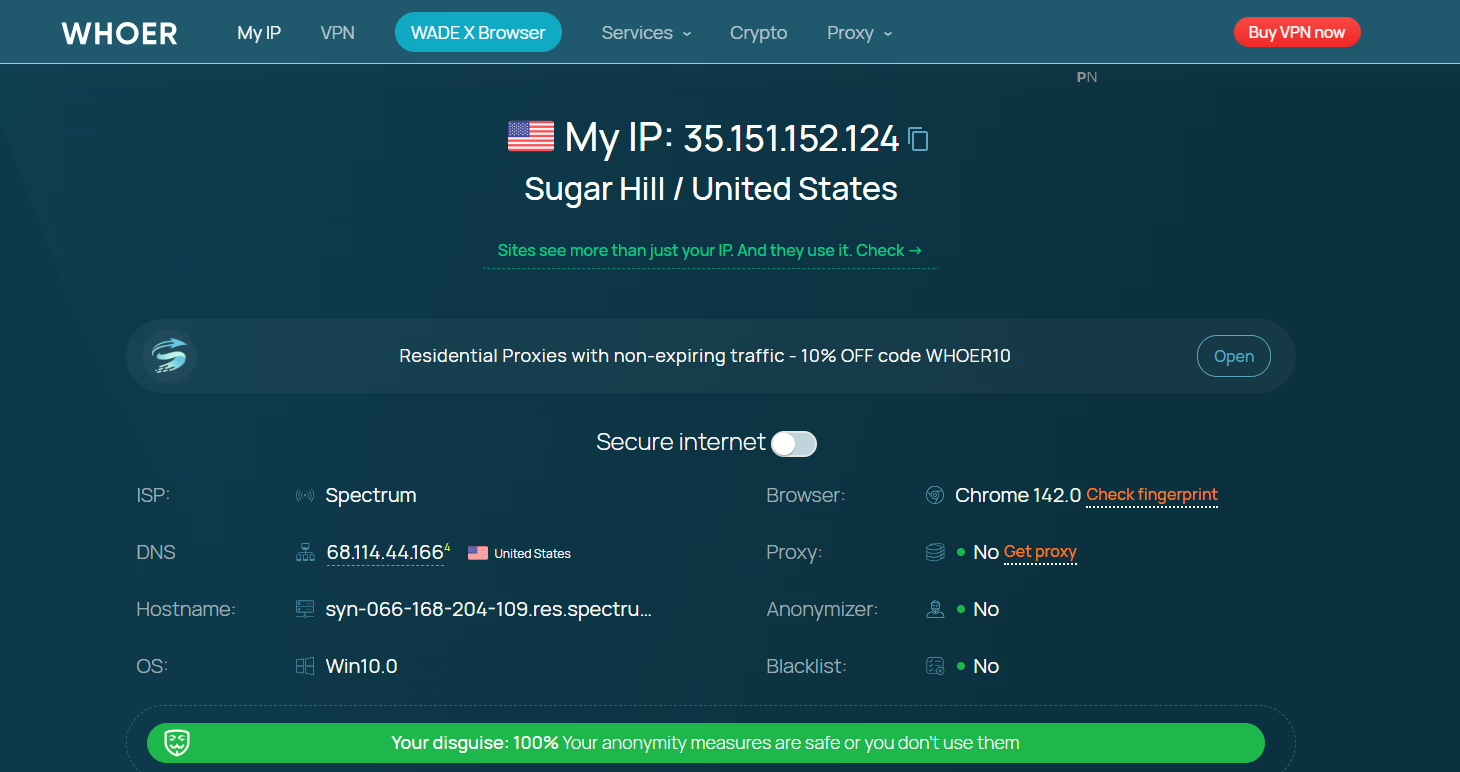
That’s how I use a web proxy in a few simple clicks with the 1Browser proxy browser, and you can too! Just follow this step-by-step guide, and you’ll all be set.
Final Thoughts
I use web proxies a lot because they are one of the easiest methods to change one’s IP address. They’re great for quick tasks and tests, and if you know how to set them up with the right tools, they can be more powerful than a VPN. In this guide, I explained in-depth what a web proxy is, and I also showed you how to use 1Browser so you can use your first web proxy in a few clicks. I hope this was helpful. Thanks for reading!
FAQ
Is using a web proxy safe?
It’s generally safe for browsing and testing, but a web proxy doesn’t encrypt your traffic – for sensitive data, pair it with HTTPS sites or use a VPN instead.
Is a web proxy legal?
Yes, in most countries – it’s a standard networking tool. Restrictions mainly apply to what you do through it, not the proxy itself.
Is a free web proxy as good as a paid one?
Free proxies are usually shared among many users, which means slower speeds and higher ban risk. Paid proxies (residential or mobile especially) are far more reliable for anything beyond quick tests.
Does a web proxy work on mobile browsers?
Yes – most mobile browsers support manual proxy configuration in their network settings, and browser apps like 1Browser support it natively.
Does a web proxy slow down my browsing?
Not usually – since there’s no encryption overhead, a good web proxy is often faster than a VPN.